|
Section Four:
Tabular
Tab Settings
Tabs occur naturally on your page
every half-inch (1.3 cm).
To see where the tab settings are
on the ruler, click View on the Menu bar and then Ruler. You can
also click the Show/Hide
 button on the toolbar to see tab stops in your work.
You can insert a tab stop either
before or after you type a paragraph.
Types of Tab Settings
Left
 ~ align from left. ~ align from left.
Right
 ~ align from right. ~ align from right.
Centre
 ~ paragraph centres
on tab stop. ~ paragraph centres
on tab stop.
Decimal
 ~ use for numbers
with decimals, centres decimal on tab stop. ~ use for numbers
with decimals, centres decimal on tab stop.
Example:
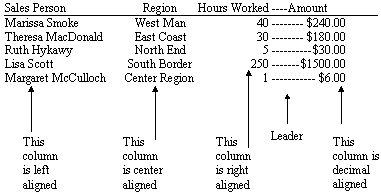
Insert Your Own Tab Stops
To Insert Your Own Tab Stops:
Method one:
- Click on the ruler where you
want to insert the tab stop, and then tab forward on each sentence. Remember,
this will create left tab stops only.
Method two:
- Highlight the
paragraph.
- Double click on the ruler to
open the Tabs dialogue box.
- Type your tab stop position
into the Tab stop position box.
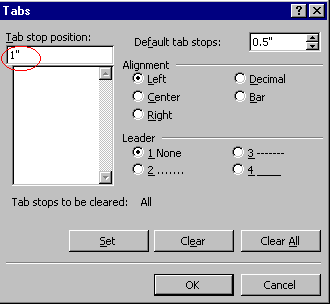
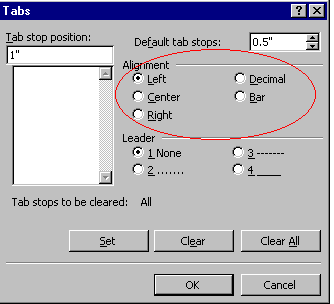
- Choose the tab stop alignment
setting you desire.
- Select the leader setting you
desire.
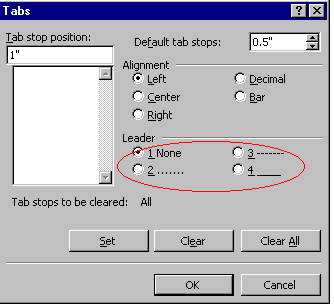
- Repeat the last 4 steps for all
the tab stops you want to set.
- Click the OK
button.
Method three:
- Highlight the
paragraph.
- Click on Format and then on
Tabs.
- Type your tab stop position
into the Tab stop position box.
- Choose the tab stop alignment
setting you desire.
- Select the leader setting you
desire.
- Repeat the last 4 steps for all
the tab stops you want to set.
- Click the OK
button.
Method four:
- Highlight the paragraph, and
then click on the ruler where you want the tab stop to be.
Move or Remove a Tab Setting
To Move or Remove a Tab Setting,
You Either:
- Use the mouse to move (drag)
the tab marker to a different place on the ruler, or drag the tab marker off
the ruler to remove the tab completely.
Or
- You can bring up the Tab
dialogue box, and change or delete the tab.
|