|
Section Seven: Bookmark &
Hyperlink
Bookmarks
By book marking an item in a
document, you can jump to that item very quickly.
To Insert a Bookmark
- Click where you want to insert
your bookmark.
- Click Insert on the Menu
bar.
- Choose
Bookmark.
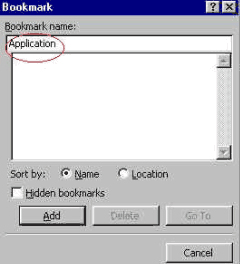
- In the Bookmark dialogue box,
enter a Bookmark name in the Bookmark name box.

To Go To a Bookmark
- Click Edit on the Menu
bar.
- Choose Go
To.
- In the Go to what box
choose Bookmark.
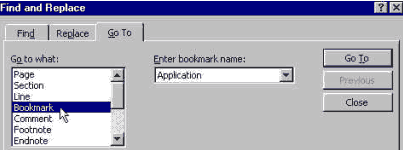
- Enter the bookmark name in the
Enter bookmark name box.
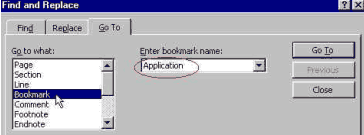
- Click the Go To
button.
- Click the Close button
to close the Find and Replace dialogue box.

To Delete a Bookmark
- Click Insert on the menu
bar.
- Choose
Bookmark.
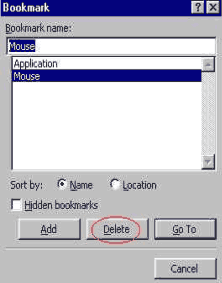
- Click to select the name of the
bookmark you want to delete.
- Click the Delete
button.
To Show Bookmarks In a
Document
- Click Tools on the Menu
bar.
- Choose
Options.
- Click the View
tab.
- Click to place a check mark in
the Bookmarks check box. (Bookmark appears in brackets or as an I-beam
on the screen. However, when you print your document, the brackets do not
print.)
|