|
Hyperlinks
Inserting hyperlinks into your
documents allows your readers to jump directly to related information by
clicking the link.
Once you define a hyperlink, it
appears in your document as underlined text (hypertext), usually of a different
colour than the standard text. If you move your mouse pointer over the
hyperlink text, your mouse pointer turns into a hand  . .
To Create a Hyperlink
- Save your file if your file is
not saved. (You should save your file before you create hyperlink)
- Open your file if your file is
not opened.
- Select the text you want to
hyperlink.
- Click the Insert
Hyperlink
 button on the toolbar.
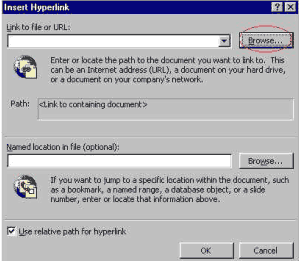
- By the Link to file or URL box,
click the Browse button to locate the file you want to link to.
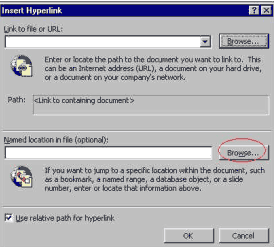
- By the Named location in file
box, click the Browse button to enter the specific location of the file
you want to link to.
To Remove a Hyperlink
- Move your cursor directly
before the hypertext.
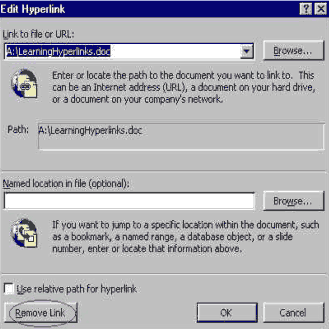
- Click the Insert
Hyperlink button on the toolbar.
- Click the Remove Link
button.
 |