|
Exercise (Insert
Bookmarks)
- Open a new word document and
enter the following text:
Computer
terms:
Scrolling
RAM
Dialogue Box
Default settings
Title Bar
Double clicking the
mouse
- Click Insert on the Menu
bar.
- Choose
Break.
- Select Next page to
insert a new page.
- Click OK.
- Enter the two definitions as
shown below onto your new page (page #2):
Scrolling ~ vertical and
horizontal bars on the sides of the window which allow you to move around
within your document. Scroll bars appear when there is more information in your
document than can be displayed within the work area.
RAM (Random Access Memory) ~ the
computer's short term memory, needed to carry out a program's instructions. RAM
is measured in MB (megabytes). It is important that your computer have enough
RAM to handle the programs you run.
- Press the Enter key on
your keyboard a few times to insert a few blank lines.
- Type Back to top. Right
align this.
- Press the Enter key
once.
- Click Insert on the Menu
bar.
- Choose
Break.
- Select Next page to
insert a new page.
- Click OK.
- Enter the two definitions as
shown below onto your new page:
Dialogue Box ~ a window which
appears when a selection such as print or save has been made. It will ask you
specific questions about how you want the computer to proceed with your
selection.
Default settings ~ automatic
settings. If you do not change your options, the default setting is what you
will get – for example, the default font style setting in Word documents
is Times New Roman.
- Press the Enter key on
your keyboard a few times to insert a few blank lines.
- Type Back to top. Right
align this.
- Press the Enter key
once.
- Click Insert on the Menu
bar.
- Choose
Break.
- Select Next page to
insert a new page.
- Click OK.
- Enter the following two
definitions onto your new page:
Title Bar ~ the horizontal bar
at the top of a window or dialogue box containing the title of the window or
dialogue box. When the window is active, the title bar is highlighted.
Double clicking the mouse ~
position the mouse pointer over a specific object, and then quickly press and
release the left mouse button twice.
- Press the Enter key on
your keyboard a few times to insert a few blank lines.
- Type Back to top. Right
align this.
- Your document should have four
pages. Save your document as "LearningHyperlinks" in your floppy
disk.
- Select the text Computer
terms on page #1 of your document.
- Click Insert on the Menu
bar.
- Choose
Bookmark.
- Enter TopOfDocument in
the Bookmark name box.
- Click the Add
button.
- Select the text
Scrolling on page #2 of your document.
- Click Insert on the Menu
bar.
- Choose
Bookmark.
- Enter Scrolling in the
Bookmark name box.
- Click the Add
button.
- Select the text RAM on
page #2 of your document.
- Click Insert on the Menu
bar.
- Choose
Bookmark.
- Enter RAM in the
Bookmark name box.
- Click the Add
button.
- Select the text Dialogue
on page #3 of your document.
- Click Insert on the Menu
bar.
- Choose
Bookmark.
- Enter DialogueBox in the
Bookmark name box.
- Click the Add
button.
- Select the text Default
settings on page #3 of your document.
- Click Insert on the Menu
bar.
- Choose
Bookmark.
- Enter DefaultSettings in
the Bookmark name box.
- Click the Add
button.
- Select the text Title bar
on page #4 of your document.
- Click Insert on the Menu
bar.
- Choose
Bookmark.
- Enter TitleBar in the
Bookmark name box.
- Click the Add
button.
- Select the text Double
clicking the mouse on page #4 of your document.
- Click Insert on the Menu
bar.
- Choose
Bookmark.
- Enter
DoubleClickingTheMouse in the Bookmark name box.
- Click the Add
button.
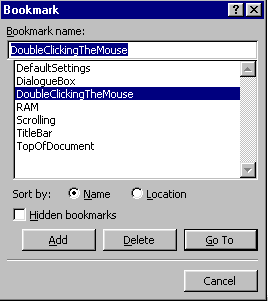
- Now, you have book marked all
your definitions. Your Bookmark dialogue box should look something like
this:
- Let's try to go to our
bookmarks. Click Edit on the Menu bar.
- Choose Go
To.
- In the Go To What box
choose Bookmark.
- Enter TopOfDocument in
the Enter bookmark name box.
- Click Go To
button.
- Click Close button. Now
your insertion point should be at page #1. (Directly before Computer
terms.)
- Click Edit on the Menu
bar.
- Choose Go
To.
- In the Go To What box
choose Bookmark.
- Enter DoubleClickingTheMouse
in the Enter bookmark name box.
- Click Go To
button.
- Click Close button. Now
your insertion point should be at page #4. (Directly before Double clicking
the mouse.)
- Click the Save button on
Menu bar to save your file again.
|