|
Exercise (Create
Hyperlinks)
- Open your file
"LearningHyperlinks" if it is not already opened.
- Select the text
Scrolling on page #1 of your document.
- Click the Insert
Hyperlink
 button on the toolbar. button on the toolbar.
- By the Link to file or URL box,
click the Browse button.

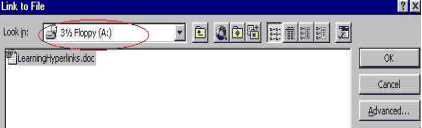
- In the Look in box, ensure 3
½ Floppy (A:) is selected.
- Locate and select the file
LearningHyperlinks.
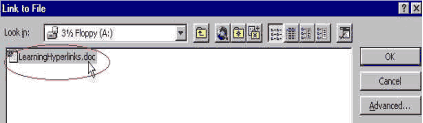
- Click the OK
button.
- In the Named location in file
(optional) box, click the Browse button.

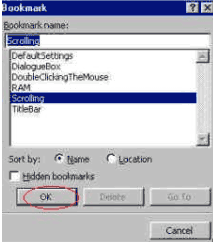
- Select Scrolling from
your Bookmark name list.
- Click the OK
button.
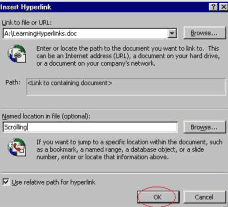
- Now you have created a
hyperlink. The hypertext, Scrolling, is underlined and is in different
color than the standard text.
- Select the text RAM on
page #1 of your document.
- Click the Insert
Hyperlink button on the toolbar.
- By the Link to file or URL box,
click the Browse button.
- In the Look in box, ensure 3
½ Floppy (A:) is selected.
- Locate and select the file
LearningHyperlinks.
- Click the OK
button.
- In the Named location in file
(optional) box, click the Browse button.
- Select RAM from the
Bookmark name list.
- Click the OK
button.
- Click the OK
button.
- Select the text Dialogue
Box on page #1 of your document.
- Click the Insert
Hyperlink button on the toolbar.
- By the Link to file or URL box,
click the Browse button.
- In the Look in box, ensure 3
½ Floppy (A:) is selected.
- Locate and select the file
LearningHyperlinks.
- Click the OK
button.
- In the Named location in file
(optional) box, click the Browse button.
- Select DialogueBox from
the Bookmark name list.
- Click the OK
button.
- Click the OK
button.
- Select the text Default
settings on page #1 of your document.
- Click the Insert
Hyperlink button on the toolbar.
- By the Link to file or URL box,
click the Browse button.
- In the Look in box, ensure 3
½ Floppy (A:) is selected.
- Locate and select the file
LearningHyperlinks.
- Click the OK
button.
- In the Named location in file
(optional) box, click the Browse button.
- Select DefaultSettings
from the Bookmark name list.
- Click the OK
button.
- Click the OK
button.
- Select the text Title
Bar on page #1 of your document.
- Click the Insert
Hyperlink button on the toolbar.
- By the Link to file or URL box,
click the Browse button.
- In the Look in box, ensure 3
½ Floppy (A:) is selected.
- Locate and select the file
LearningHyperlinks.
- Click the OK
button.
- In the Named location in file
(optional) box, click the Browse button.
- Select TitleBar from the
Bookmark name list.
- Click the OK
button.
- Click the OK
button.
- Select the text Double
clicking the mouse on page #1 of your document.
- Click the Insert
Hyperlink button on the toolbar.
- By the Link to file or URL box,
click the Browse button.
- In the Look in box, ensure 3
½ Floppy (A:) is selected.
- Locate and select the file
LearningHyperlinks.
- Click the OK
button.
- In the Named location in file
(optional) box, click the Browse button.
- Select
DoubleClickingTheMouse from the Bookmark name list.
- Click the OK
button.
- Click the OK
button.
- Select the text Back to
top on page #2 of your document.
- Click the Insert
Hyperlink button on the toolbar.
- By the Link to file or URL box,
click the Browse button.
- In the Look in box, ensure 3
½ Floppy (A:) is selected.
- Locate and select the file
LearningHyperlinks.
- Click the OK
button.
- In the Named location in file
(optional) box, click the Browse button.
- Select TopOfDocument
from the Bookmark name list.
- Click the OK
button.
- Click the OK
button.
- Select the text Back to
top on page #3 of your document.
- Click the Insert
Hyperlink button on the toolbar.
- By the Link to file or URL box,
click the Browse button.
- In the Look in box, ensure 3
½ Floppy (A:) is selected.
- Locate and select the file
LearningHyperlinks.
- Click the OK
button.
- In the Named location in file
(optional) box, click the Browse button.
- Select TopOfDocument
from the Bookmark name list.
- Click the OK
button.
- Click the OK
button.
- Select the text Back to
top on page #4 of your document.
- Click the Insert
Hyperlink button on the toolbar.
- By the Link to file or URL box,
click the Browse button.
- In the Look in box, ensure 3
½ Floppy (A:) is selected.
- Locate and select the file
LearningHyperlinks.
- Click the OK
button.
- In the Named location in file
(optional) box, click the Browse button.
- Select TopOfDocument
from the Bookmark name list.
- Click the OK
button.
- Click the OK
button.
- Now, you have created all the
necessary hyperlinks. If you click on the computer terms on page #1 (the links
you have just created), they should take you to the definitions.
- If you click on the text
Back to top on page #2, page #3, or page #4 it should take you back to
Page #1.
|