|
Section Eight:
Mail Merge
Mail Merge
The mail merge process comes in
handy if you need to send similar documents to many individuals at once. The
recipient's name and other personal information are often added to a document
to create a more personal impression.
The three steps in mail merge
process:
- Create the main
document.
- Create the data
source.
- Merge the data source and main
document.
The main document in the
mail merge process contains the basic text that is common to all the versions
of the merged documents.
The data source contains the
personalized information that varies for each merged document, such as name,
address, and telephone number.
To merge a main document with a data
source, merge fields must be inserted into the document. A merge field is a
code that represents a field name from the data source.
Practice:
You are the president of a bank.
Your bank is celebrating its 5th anniversary. In honour of the occasion,
starting September 1, 2000, you are offering your preferred customers some
rewards.
Create the main document
- Type a letter to your Preferred
Customers to let them know that in appreciation of their business you are
giving them free Interac Direct Payment purchases, and free bill payments.
Following is a sample letter:
|
West Man
Bank
1234 Pacific Avenue
Brandon, Manitoba
R7A 1Y9 |
February 2,
2000
Joe Boles
111 - 1st
Street
Brandon, Manitoba
R1B 1C1
Dear Joe:
We have some great news
for you! Effective September 1, 2000, we're adding some great new features to
your West Man Chequing Account - free!
On September 1, 2000,
your chequing account #001-23456 will be upgraded to a Preferred Customer
Account. This special account is exclusive to our best clients.
Right now, you are
charged 30 cents each time you make Interac Direct Payment debit and purchases,
and up to $1.30 if you make bill payments at a branch. With a Preferred
Customer Account, these services will be free! Simply maintain your minimum
balance of $500 throughout the calendar month and enjoy free Interac Direct
Payment purchases, and free bill payments, regardless of whether you pay by
phone, by PC, or at a branch. A Preferred Customer Account really does give you
more!
Having you as a customer
is very important to us. We appreciate your business, and want to ensure that
you get the best possible value for your money.
If you have any questions
about this new account, I invite you to call us at 727-4567. We'd be happy to
answer any questions you have.
Sincerely,
Your name
President
Core Banking Services
|
- Save your letter as
"Rewards".
- ClickTools on the Menu
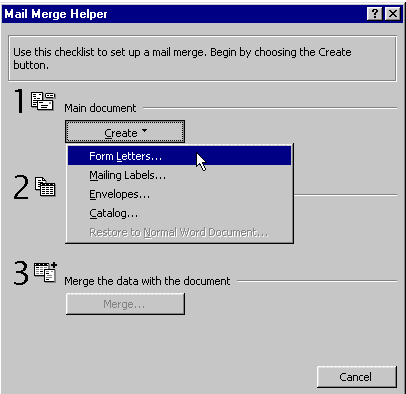
bar. Choose Mail Merge.Click the Create button.Choose
Form Letters to create a main document.
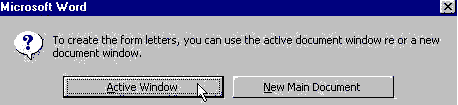
- Choose the Active Window button
if your document is already open, otherwise click the New Main document button.
For this exercise click the Active Window buttonto select the document
displayed on your screen.
Create data source
- Click Get Data
button.
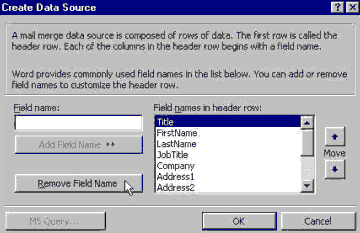
Choose the Create Data Source
button to attach a new data source. Click the Open Data Source button to attach
an existing data source. In this exercise click the Create Data Source
button.

Since we
need only First name, Last name, Address, City, State, and Postal code fields,
in the Field names in header row box select and remove the
following field names:
- Title
- Job Title
- Company
- Address2
- Country
- HomePhone
- WorkPhone
- Click OK.
- Save the data source as
"MailingList".
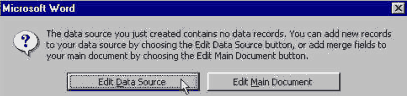
- Click Edit Data Source
button to add new records to the data source.
- Now, enter the information for
each customer on your mailing list. (Enter at least eight customers)
(
Hints: PressTab to move to next area.
Click on Add New to
enter the information for the next customer.)
- Click View Source to
view the data source.
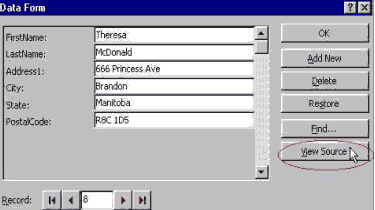
- Your data source should look
something like this:
| FirstName |
LastName |
Address1 |
City |
State |
PostalCode |
| Joe |
Boles |
111 - 1st Street |
Brandon |
Manitoba |
R1B 1C1 |
| Mary |
Brown |
222 - 6th Street |
Neepawa |
Manitoba |
R7A 1A2 |
| John |
Smith |
333 Summer Ave |
Virden |
Manitoba |
R1A Y7G |
| Kathy |
Sallans |
444 Lucky Cres. |
Brandon |
Manitoba |
R9V 4V5 |
| Tracy |
Hayward |
555 5th Street |
Swan River |
Manitoba |
R7J 9V2 |
| Ruth |
Conway |
888 Winter Bay |
Brandon |
Manitoba |
R9B 7H6 |
| Lisa |
Kozak |
777 Summer Bay |
Brandon |
Manitoba |
R9T 1D5 |
| Theresa |
McDonald |
666 Princess Ave |
Minnedosa |
Manitoba |
R8C 1D5 |
- Click the Save
 button on the
Toolbar to save the information you entered. button on the
Toolbar to save the information you entered.
Merge the data source and main
document
- Click the Mail Merge Main
Documentbutton to return to the main document.
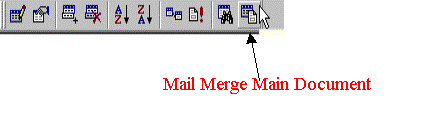
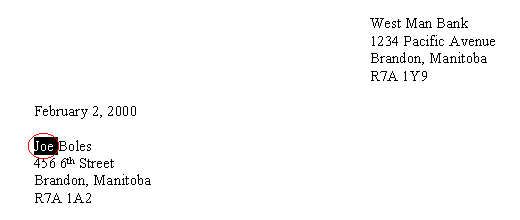
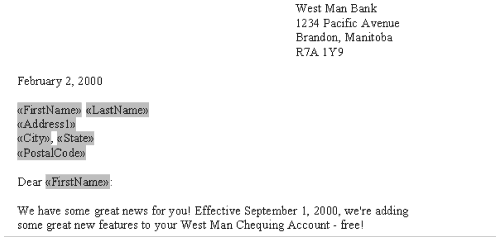
- Select the area of text that
you want to change in each letter. (e.g.: the first name)
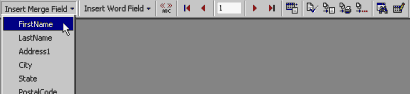
- Click the Insert Merge
Fieldbuttonto display a list of field names. Click the field name that
corresponds to the text you selected.
- Repeat the above 2 steps for
all the text you want to change in each letter.
(In this exercise we still need to change the following fields:
Last name
Address
City
Province
Postal code
First name in the salutation
area)
- Click
theSave button on the Toolbar to save your document. Your document
should look something like this:
- Click Merge To New
Documentto merge the main document and the data source.

- Scroll through your document to
look at your letters.
|