|
Columns
The following paragraph is in
2-column format:

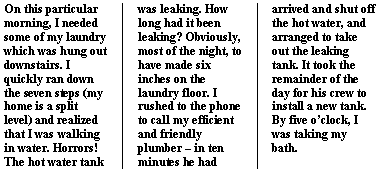
The following paragraph is in
3-column with lines between them format:
Apply Columns
To Apply Columns to Your Document:
- Click Format on the Menu
bar. Choose Columns.
- Choose an option from the
Presets box.
Or enter a number in the Number of Columns box.
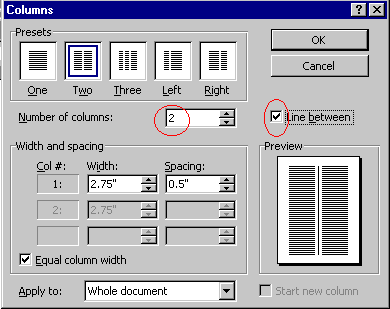
- Click to place a check mark in
the Line between check box if you like to have a line between the
columns.
- Choose OK.
Or
- Click the Columns
 button on the toolbar.
- Select the number of
columns.
To Return the Document to One
Column
- Click Format on the Menu
bar. Choose Columns.
- Enter 1 in the Number of
Columns box.
- Click OK.
Adjust Column lengths
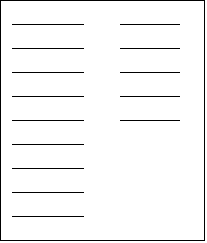
If the columns of your document are
unbalanced, for example:
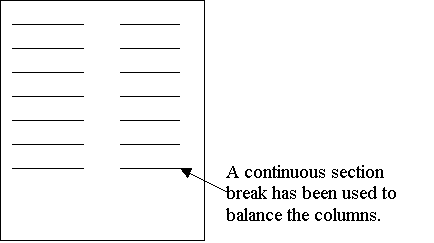
You can balance the columns by
inserting a continuous section break at the end of the text in the last
column.
|