|
Exercise (Insert
WordArt)
- Open a new
document.
- Click Insert on the Menu
bar.
- Choose Picture,
WordArt.
- In the WordArt Gallery dialogue
box, select the WordArt style as shown below: (Second row, fifth
column.)

- Click OK.
- Click the Font drop-down
arrow and choose Book Antiqua.
- Click the Font size
drop-down arrow and choose 60.
- Click the Bold
button.
- Delete Your Text Here
and type Reading.
- Press Enter key on your
keyboard to bring your insertion point to next line.
- Press Space bar on your
keyboard twice.
- Type and.
- Press Enter key on your
keyboard to bring your insertion point to next line.
- Type
Writing.
- Click OK.
- With the WordArt still
selected, click the WordArt Shape
 button on the WordArt toolbar. button on the WordArt toolbar.
- Click Button
(Pour)
 . .
- With the WordArt still
selected, click the Format WordArt
 button on the WordArt toolbar.
- Click the Colors and
Lines tab, if necessary.
- Click the Color
drop-down arrow in the Fill section. Choose Fill
Effects.
- Click the Texture
tab.
- Choose Pink tissue
paper.

- Click OK.
- Click the Color
drop-down arrow in the Line section.
- Choose Red.
- Click OK.
- Now you can move your WordArt
to the desired location and/or change to a desired size.
- Create a page border if you
desired.
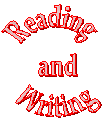
- Your WordArt should look
something like this:
 |