|
Indent Paragraphs
Indents change the distance between
the page margins and a paragraph.
There are several types of indents
in Word:
First Line Indent, Hanging Indent,
Left Indent, and Right Indent.
The following paragraph is First
Line Indented:

The following paragraph is Left
Indented:

The following paragraph is Right
Indented:

Indent Using the Ruler
To Set the First Line Indent By
Using the Ruler:
- Click View on the Menu bar.
Choose Ruler to display the ruler.
- Place the insertion point in
the paragraph that you want to apply the first line indent to.
- Drag the First Line Indent
 marker to the desired position.
To Set a Left Indent By Using the
Ruler:
- Click View on the Menu bar.
Choose Ruler to display the ruler.
- Place the insertion point in
the paragraph to which you want to apply the Left Indent.
- Drag the Left Indent
 marker
to the desired position. marker
to the desired position.
To Set a Right Indent By Using the
Ruler:
- Click View on the Menu bar.
Choose Ruler to display the ruler.
- Place the insertion point in
the paragraph to which you want to apply the Right Indent.
- Drag the Right Indent
 marker
to the desired position. marker
to the desired position.
Indent Using the Paragraph Dialogue
Box
To Set Indents Using the Paragraph
Dialogue Box:
- Select the desired
paragraph(s).
- Click Format at the Menu
bar.
- Choose Paragraph.
- Click Indents and Spacing
tab.
- In the Indentation area, enter
the desired setting(s) in the Left and / or Right text boxes.
- From the Special drop-down
menu, choose Hanging or First Line.
- In the By scroll box, select or
type the special indent setting.
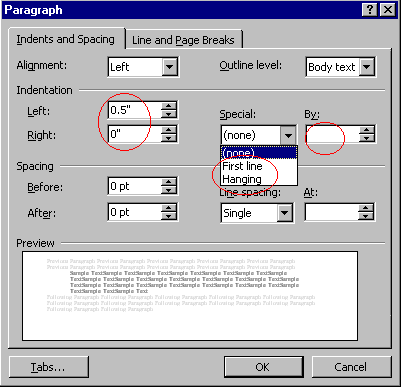
- Click OK.
Left Indent By Using the Toolbar
To Change the Left Indent By Using
the Toolbar.
Left indent can also be changed by
using the Decrease Indent
 and
Increase Indent and
Increase Indent
 buttons on the toolbar.
|