|
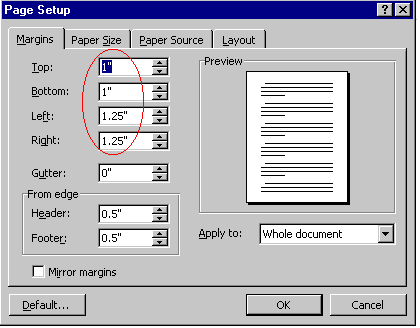
Change Page and Margin Settings The white space between the edge of the text and the edge of the page is called the margin. Default size of top margin is: 1" Default size of bottom margin is: 1" Default size of left margin is: 1.25" Default size of right margin is: 1.25" To Change Margin Settings 1). From the File menu, choose Page Setup.2). Choose the Margins tab. 3). Type new measurements for any settings you want.
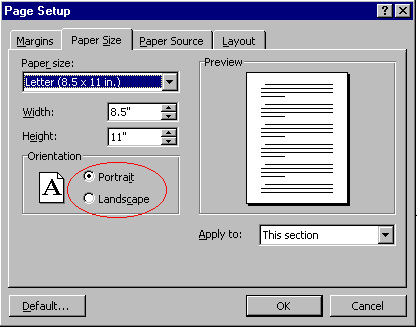
4). Choose the OK button. To Change Page Orientation When you arrange text on a page that is taller than it is wide, the orientation is called portrait. When you arrange text on a page that is wider than it is tall, the orientation is called landscape. 1). From the File menu, choose Page Setup.
To Change Paper Size 1). From the File menu,
choose Page Setup.
4). Choose the OK button. To Change Vertical Alignment 1). From the File menu, choose Page Setup.
4) Choose the OK button.. |


| Back | Index | Next |