|
Exercise (Create and Format a
Table, Merge Cells)
- Create a new word processing
file.
- Click Table on the Menu
bar. Choose Insert Table.
- In the Number of columns
box enter 4.
- In the Number of Rows
box enter 8.
- Click the OK
button.
Enter the following information
into your table:
| Work
Schedule |
|
|
|
| Name |
Date |
Time Start |
Time End |
| Patty Crook |
Jan. 15, 2001 |
9:00 a.m. |
5:00 p.m. |
| Frank Ames |
Jan. 15, 2001 |
10:00 a.m. |
5:00 p.m. |
| Velda Brown |
Jan. 15, 2001 |
11:00 a.m. |
7:00 p.m. |
| Kelly Kozak |
Jan. 15, 2001 |
11:00 a.m. |
7:00 p.m. |
| Amy Jones |
Jan. 15, 2001 |
10:00 a.m. |
6:00 p.m. |
| Grant Day |
Jan. 15, 2001 |
10:00 a.m. |
6:00 p.m. |
- Select the first
row.
- Click Table on the Menu
bar.
- Choose Merge
Cells.
- Click the Center button
on the toolbar.
- Click Table on the Menu
bar.
- Choose Cell Height and
Width.
- Click the Row
tab.
- In the At box enter
30pt.
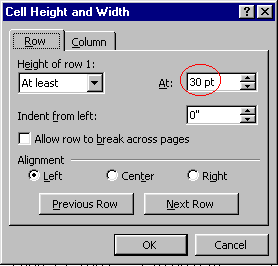
- Click OK.
- Click View on the Menu
bar. Choose Toolbars.
- Click to place a check mark
beside Tables and Borders to open the Tables and Borders
toolbar.
- With the first row still
selected, click the Center Vertically
 button on the Tables and
Borders toolbar. button on the Tables and
Borders toolbar.
- Select rows 3 to
8.
- Click Table on the Menu
bar. Choose Sort.
- Sort the table by column
1 in ascending order.
- Click the No header row
button under My list has field.
- Click OK.
- Click the Table
AutoFormat
 button on the Tables and Borders
toolbar. button on the Tables and Borders
toolbar.
- Select the Grid 8 option
from the Formats list box.
- Click OK.
- Save your file.
- Your table should look
something like this:
|
Work
Schedule |
| Name |
Date |
Time Start |
Time End |
| Amy Jones |
Jan. 15, 2001 |
10:00 a.m. |
6:00 p.m. |
| Frank Ames |
Jan. 15, 2001 |
10:00 a.m. |
5:00 p.m. |
| Grant Day |
Jan. 15, 2001 |
10:00 a.m. |
6:00 p.m. |
| Kelly Kozak |
Jan. 15, 2001 |
11:00 a.m. |
7:00 p.m. |
| Patty Crook |
Jan. 15, 2001 |
9:00 a.m. |
5:00 p.m. |
| Velda Brown |
Jan. 15, 2001 |
11:00 a.m. |
7:00 p.m. |
|