|
Preview and Print a
Document
To Preview a Document:
If you want to see how a file will
look when you print it, click the Print Preview
 button on the toolbar. button on the toolbar.
Click the Close button to
return to your document.

To Print a Document:
- Click the
Print
 button on the toolbar. button on the toolbar.
Or
- Click File on the menu
bar. Choose Print.
- Under Print range,
choose All
 if you
want to print all the pages. if you
want to print all the pages.
- The Current page
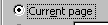 option will print only the page, which the cursor is in.
- Choose Selection
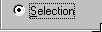 if you
want to print highlighted selection of text. if you
want to print highlighted selection of text.
- Enter the page numbers or page
ranges you want to print in the Pages box
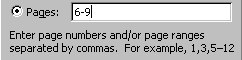 if you
want to print a range of pages or print a specific page. if you
want to print a range of pages or print a specific page.
- In the Number of copies
box
 , enter the number of copies you want to
print. , enter the number of copies you want to
print.
- Click the OK button to
print.
The options below will assign
the printer to print 2 copies of pages 6-9:

|