|
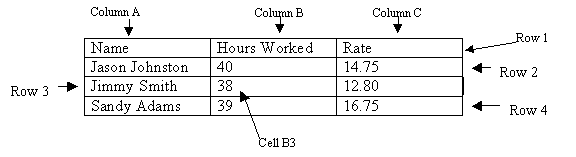
Section Six: Tables Tables A table is text arranged in a grid of rows and columns. Each column or row consists of a cell or group of cells. Each cell has a name, which consists of a column label [letter], and a row label [number]. For example, cell B2 is at the meeting point of column B row 2. The following table has 4 rows and 3 columns:
To Create a Table
To Enter Text Into a Table To enter text into a table, click inside the desired cell and begin typing. Use Tab to move to the next cell to the right. To Select a Column Move the mouse pointer to the top border of a desired column. Click to select the column. To Select a Row Move the mouse pointer to the left border of a desired row. Click to select the row. To Select the Entire Table Click any where inside the table, click Table on the Menu bar and select Select Table. To Adjust Column Widths To adjust column width, select the desired column, click Table on the Menu bar and select Cell Height and Width. Type the desired width in the Width of column #: box, click the OK button.
Or Move your mouse pointer to the vertical gridline at the right side of the column where you want to adjust for width. Your mouse pointer will turn to a double-headed arrow. Drag this double-headed arrow to the right to make the column bigger, to the left to make the column smaller.
To Adjust Column Widths Automatically To automatically adjust the width of a table's columns to fit the largest entry select the entire table. Click Table on the Menu bar. Select Cell Height and Width. Click the AutoFit button. To Adjust Row Heights To adjust row height, select the desired row. Click Table on the Menu bar and select Cell Height and Width. Type the desired height in the At box. Click the OK button.
Or Move your mouse pointer to the horizontal gridline at the bottom of the row where you want to adjust for height. Your mouse pointer will turn to a double-headed arrow. Drag this double-headed arrow down to make the row bigger, up to make the row smaller.
To Insert Rows Select the row below the position
where the new one is to be inserted. Click the Insert Rows
To Insert Columns Select the column to the right of
the position where the new column is to appear. Click the Insert Columns
To Delete Rows Select the desired row. Click the Table button on the Menu bar. Select Delete Rows. To Delete Columns Select the desired column. Click the Table button on the Menu bar. Select Delete Columns. To Merge Cells Select the cells you want to merge. Click the Table button on the Menu bar. Select Merge Cells. To Split Cells Select the cell(s) you want to split. Click the Table button on the Menu bar. Select Split cells. In the Number of columns and Number of rows boxes enter the number of columns and number of rows you want to split the selected cells into. To Sort a Table You can use the Sort command to sort up to three columns.
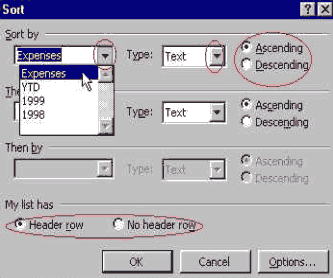 |

 on the
toolbar.
on the
toolbar.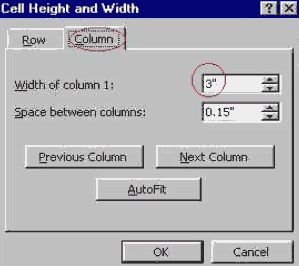

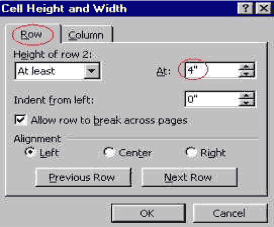

 button.
  button.
 | Back | Index | Next |